
Xtreme HD IPTV on iPhone, iPad & Apple TV
Connect your Xtreme HD IPTV access to IPTVX and start exploring your available content on a compatible Apple device. This guide takes you from installing the player to loading your first playlist.
Use IPTVX With Your Xtreme HD IPTV Account
IPTVX is a separate media player for compatible Apple devices. It supports Xtream API and M3U playlists, so you can import the connection details supplied for your access. The app itself does not provide your Xtreme HD IPTV subscription.
View the official listing IPTVX on the App Store ↗Check the current device requirements and purchase conditions in the App Store before downloading.
Set Up on Your Preferred Apple Device
Keep your activation details ready and confirm that your device meets the app's current requirements.
iPhone
Install the player on your compatible iPhone, add your account and test playback using your normal Wi-Fi or mobile connection.
iPad
Use your iPad's larger display to browse available categories, check programme information and explore on-demand titles.
Apple TV
Download IPTVX on a compatible Apple TV, enter your account details and navigate the player with your television remote.
Bring Your Playlist to Apple TV
IPTVX provides a TV interface for browsing the content you import. Once your account connects, open a category, try a channel and check that the remote controls work as expected.
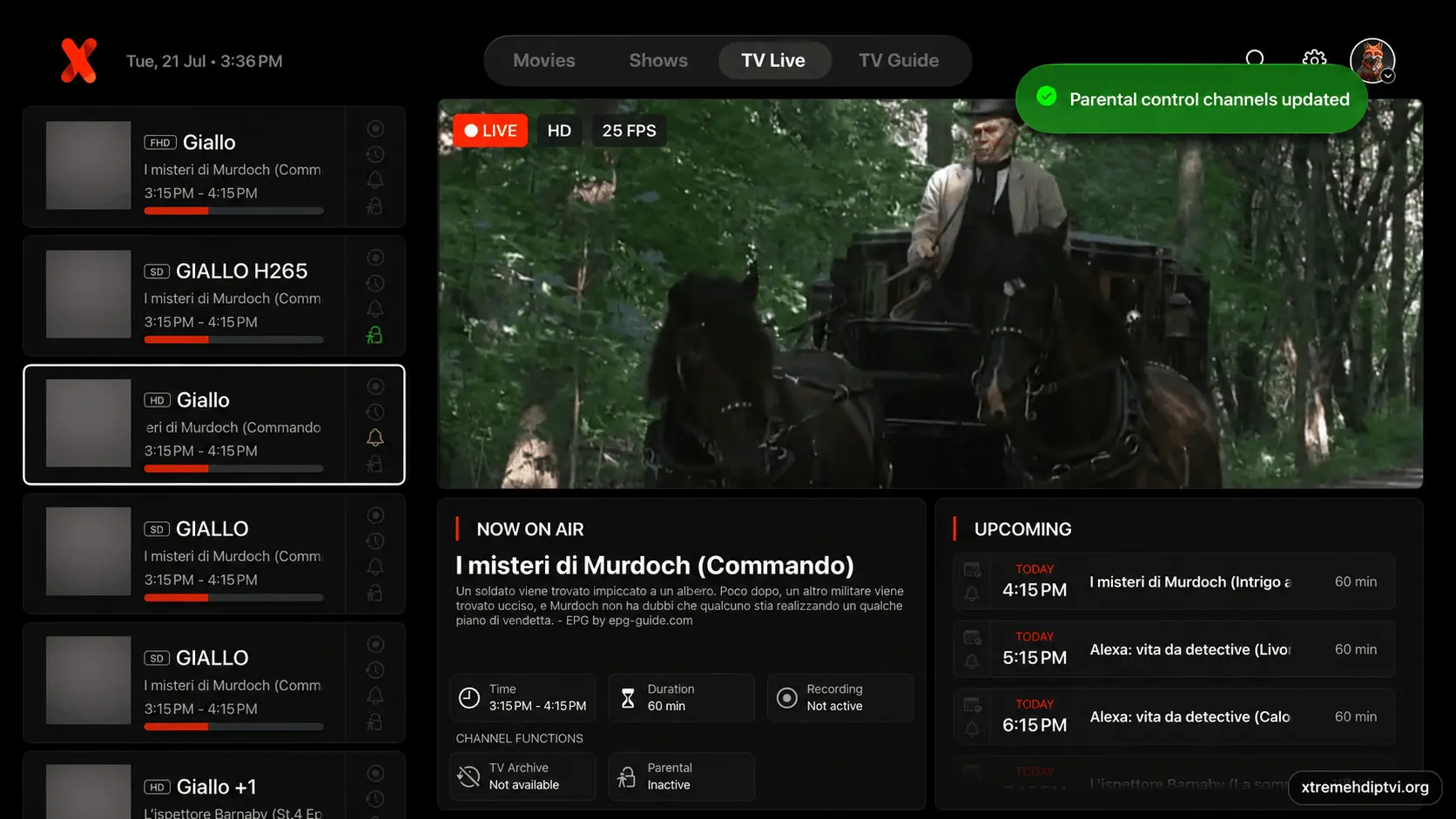
Xtream Login or M3U Playlist?
Use the option that matches your activation message. You only need one method to add the same account.
Connect With Xtream Details
Select the Xtream account option when your access details include a server address, username and password.
Import an M3U Link
Select the playlist URL option when you receive a complete M3U link. Paste the full address exactly as supplied.
Your checkout email is not necessarily your player username. Use the details in your activation instructions.
How to Set Up Xtreme HD IPTV With IPTVX
Menu labels may differ between iPhone, iPad, Apple TV and app versions. Follow the matching account or playlist option shown on your screen.
-
Find IPTVX in the App Store
Open the App Store and search for IPTVX. Review the official listing and confirm compatibility before downloading.
-
Install and Open the Player
Download the app, launch it and complete the introductory prompts shown on your device.
-
Add a Playlist or Account
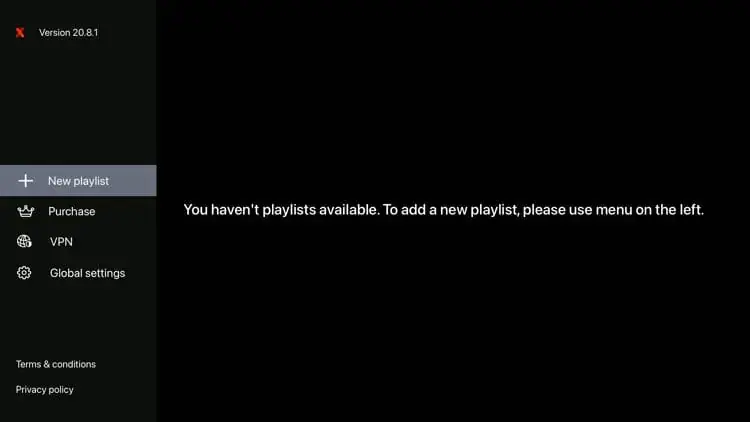
Find the option to create a new playlist or add an account. Choose a descriptive name if the app requests one.
-
Select Your Login Method
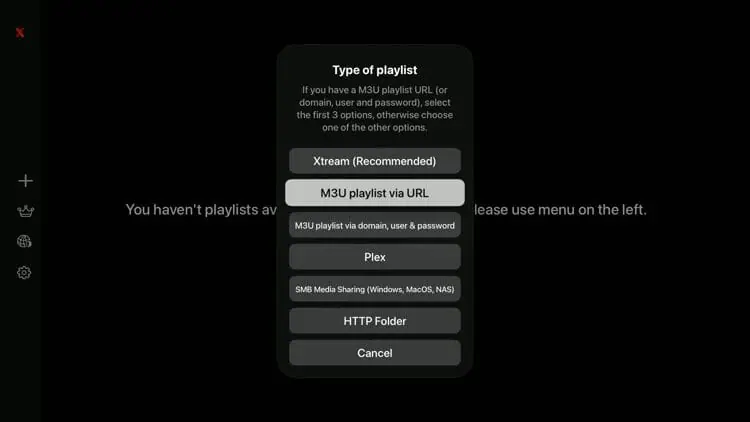
Choose Xtream login for separate account credentials, or the M3U option for a full playlist URL.
-
Enter Xtream Details, if Selected
Copy your server address, username and password into the corresponding fields. Check punctuation and remove accidental spaces.
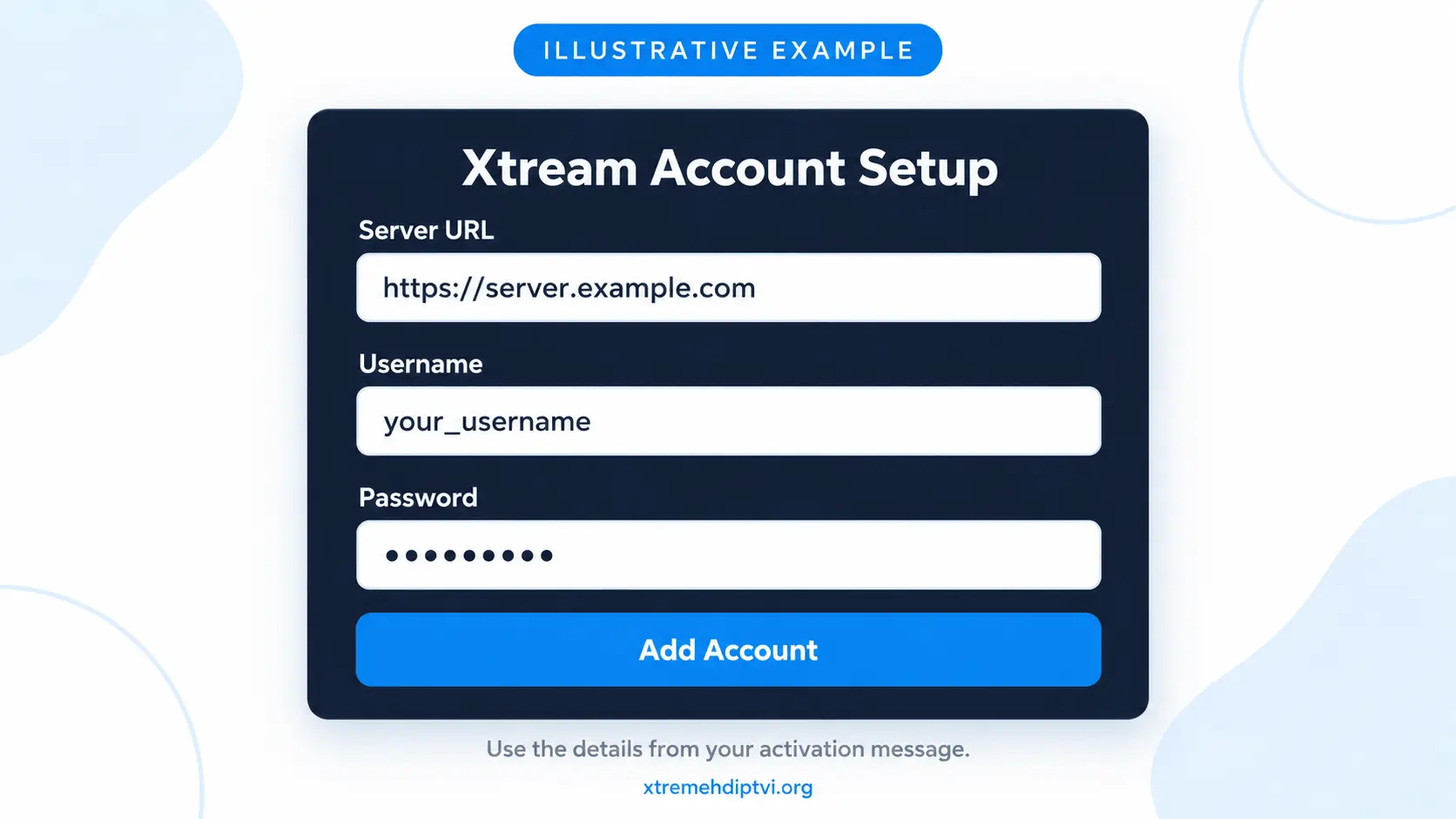
Illustrative example. The layout and field labels may vary in your IPTVX version. -
Paste Your M3U Link, if Selected
Enter the complete playlist URL without changing its parameters. Add programme guide details only when supplied and requested.
-
Save and Load Your Playlist
Confirm the connection details and allow the player to retrieve your available categories and guide data.
-
Open a Channel and Test Playback
Try a channel, check navigation and explore your available content. If an error appears, note the message and contact support.
Explore Your Content on Apple Devices
Once connected, browse what is included with your access and test the features that matter to your viewing habits.
- Explore live television categories.
- Browse available movies and series.
- Save favourites where supported.
- Check programme listings where available.
- Test playback on your usual connection.
Need Help Connecting?
Share your device model, app version and the exact error message. Keep passwords and private playlist URLs out of screenshots.
Ask Support on WhatsApp →Important Information About IPTVX
App and Access Are Separate
IPTVX handles playback. Your Xtreme HD IPTV activation details connect the player to the content supplied with your account.
Review App Purchase Terms
Check the App Store for current app purchases or subscription conditions. Any IPTVX charges are separate from your IPTV service.
Check Your Connection Limit
Using the player on several devices does not increase your subscription allowance. Confirm how many simultaneous streams your plan permits.
Xtreme HD IPTV on Apple Devices: FAQ
How do I watch Xtreme HD IPTV on iPhone or iPad?
Install a compatible IPTV player such as IPTVX, then add the Xtream account details or M3U playlist supplied with your Xtreme HD IPTV access.
Can I use IPTVX on Apple TV?
IPTVX has an Apple TV version. Check its App Store listing to confirm that your device and operating system meet the current requirements.
Should I choose Xtream or M3U?
Choose Xtream if you received a server address, username and password. Choose M3U if your activation message contains a complete playlist URL.
Does installing IPTVX activate my subscription?
No. Installing the player and activating IPTV access are separate steps. Add the account details provided for your trial or subscription.
Why are my login details rejected?
Check the login method, server address, username, password and accidental spaces. Ask support to confirm your account status if the issue continues.
Can I watch on more than one Apple device?
You can configure compatible devices, but simultaneous viewing is limited by your subscription's connection allowance. Confirm your plan's limit with support.
Why is the programme guide missing?
Programme information depends on the channel, supplied EPG data and player configuration. Ask support whether guide coverage is available for the channel.
Can I test my setup before subscribing?
Request the 24-hour Xtreme HD IPTV free trial, confirm compatibility with your device and check playback on your own connection.
Ready to Try Your Apple Setup?
Test your device with a 24-hour free trial, or explore setup instructions for another platform.